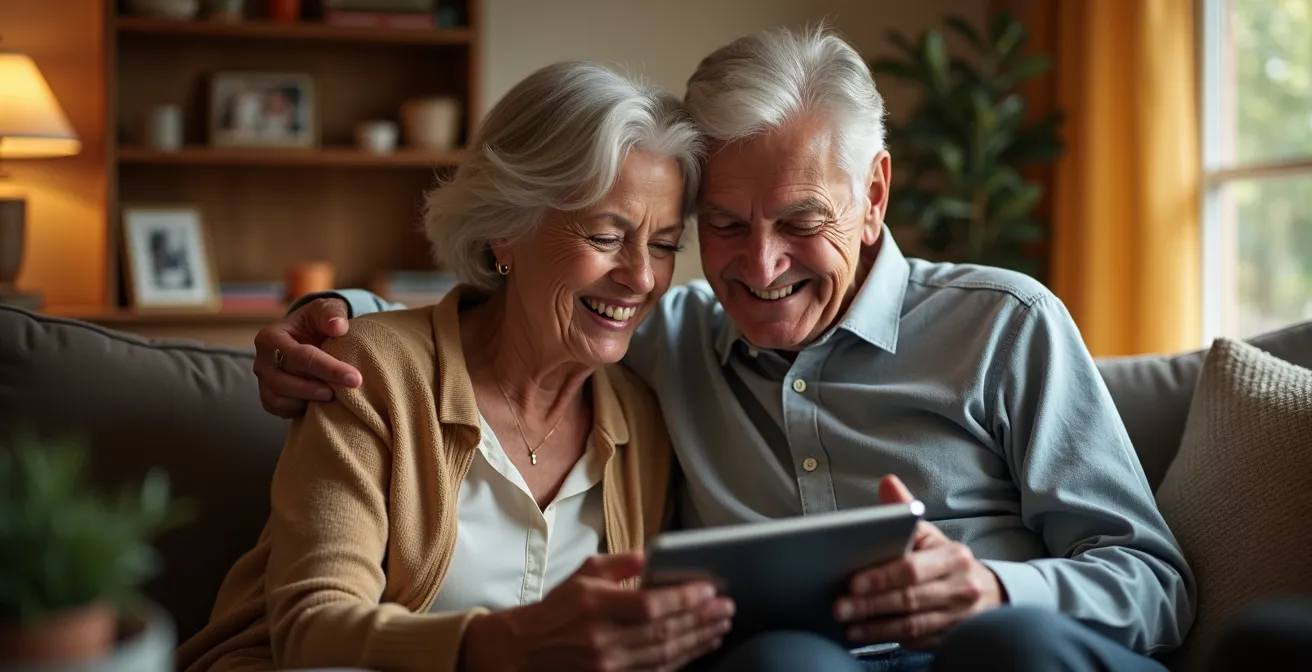
For non-tech-savvy seniors, a dedicated smart display is decisively better than a tablet for maintaining family connections.
- Smart displays reduce “decision points” and cognitive load, making video calls as simple as a voice command.
- Features like automatic answering (“Drop-In”) eliminate the anxiety of missing a call or fumbling with the screen.
Recommendation: Choose a smart display like an Amazon Echo Show for its voice-first, frictionless communication interface, but be sure to configure its privacy and routine settings meticulously.
The desire to keep a non-tech-savvy grandparent connected with family often leads to a well-intentioned but flawed solution: gifting a tablet. The logic seems sound—it’s a portable screen for video calls. Yet, this approach frequently fails, leaving the device to gather dust and the senior feeling more isolated than before. The problem isn’t the technology itself, but the unanticipated cognitive load it imposes. Unlocking the screen, finding the right app, navigating contacts, and answering a call all represent “decision points”—small hurdles that accumulate into significant communication anxiety for someone unfamiliar with the digital world. With research showing that 1 in 4 people over 65 are socially isolated, finding a truly frictionless solution is not a luxury, but a necessity.
Many guides simply compare features like screen size or app availability. This misses the fundamental point. The real question isn’t “Which device does more?” but “Which device removes more barriers to connection?” The key lies in shifting our perspective from feature-rich versatility to purpose-built simplicity. What if the best tool wasn’t a complex, multi-purpose device but an “ambient” one that fades into the background, ready to facilitate connection at a moment’s notice without demanding technical skill?
This article moves beyond a surface-level comparison. As a gerontechnologist, we will analyze these devices through the lens of cognitive load and frictionless design. We will explore the science behind why seeing a face matters, how to configure features for effortless use, compare the most popular interfaces, and establish the privacy and routine-based frameworks essential for success. The goal is to equip you with the knowledge to choose and implement a solution that fosters genuine, spontaneous connection, rather than another piece of frustrating technology.
This guide will walk you through the critical considerations for choosing, configuring, and integrating a communication device into a senior’s life. We will cover everything from the psychological benefits of video to the practicalities of connectivity, ensuring you make an informed decision that truly bridges the distance.
Summary: Smart Displays vs. Tablets: Which Device Best Helps Seniors Stay in Touch with Family?
- Why Seeing Facial Expressions Reduces Communication Anxiety in Seniors?
- How to Configure ‘Drop-In’ Features so Seniors Don’t Have to Answer?
- Facebook Portal vs. Amazon Echo Show: Which Interface Is More Intuitive?
- The Privacy Settings You Must Enable Before Gifting a Smart Device
- When to Schedule Video Calls to Avoid Disrupting Routine?
- Wi-Fi vs. Cellular Telecare: Which Is Safer for Isolated Homes?
- How to Structure a Daily Check-In Routine for Remote Caregivers?
- Telecare Systems for Dementia: Which Features Respect Privacy While Ensuring Safety?
Why Seeing Facial Expressions Reduces Communication Anxiety in Seniors?
A simple phone call provides a voice, but a video call provides presence. For seniors, especially those experiencing social isolation or hearing difficulties, the visual component of communication is not just a bonus feature—it’s a critical tool for reducing anxiety and enhancing connection. The human brain is wired to read and react to facial expressions. These non-verbal cues convey emotion, confirm understanding, and build trust in ways that audio-only communication cannot. Seeing a smile, a nod, or a look of concern provides immediate feedback, reassuring a senior that they are heard and understood, which in turn lowers the stress associated with conversation.
This isn’t just intuitive; it’s backed by science. Our brains contain “mirror neurons” that fire both when we perform an action and when we see someone else perform that action. When we see a loved one smile on screen, our brain simulates that same feeling of happiness, fostering a deeper sense of empathy and emotional connection. Research into automated facial emotion recognition has shown that algorithms can classify nuanced emotions with remarkable precision, demonstrating just how much data is contained in our expressions. An advanced network can achieve accuracy comparable to human observers, who correctly identify fine-grained emotions like anxiety or joy nearly 90% of the time. Losing this visual channel means losing the vast majority of our emotional bandwidth.

For a senior, this means a video call can transform a potentially stressful interaction into a comforting one. They can see that their family member is relaxed and happy to talk, rather than trying to decipher tone of voice, which can be difficult with age-related hearing loss. This visual reassurance is the first and most fundamental reason why a screen-based device is superior for senior communication. It directly combats the communication anxiety that arises from uncertainty and misunderstanding, making the experience of connecting with family a source of joy, not stress.
How to Configure ‘Drop-In’ Features so Seniors Don’t Have to Answer?
One of the most significant barriers for non-tech-savvy seniors is the “answering” process. The pressure to react to a ringing device, find the right button, and tap it correctly before the call disconnects can cause immense anxiety. This is where smart displays offer a game-changing feature that tablets lack: passive, automatic connection. Amazon’s “Drop In” feature is a prime example of this frictionless communication. It allows pre-approved contacts to instantly connect to the device’s video and audio feed without the senior needing to take any action.
While this sounds intrusive at first, when used thoughtfully within a trusted family circle, it becomes a powerful tool for both connection and peace of mind. It transforms the device from a demanding telephone into a calm, always-open window to family. As the team at Graycare notes, the magic of this feature is in its immediacy:
Drop In is faster than a telephone call because you skip the ring and answer parts. When you Drop In on someone, you connect immediately.
– Graycare Team, Graycare Guide to Echo Drop-In for Elderly Parents
Proper configuration is essential to balance this convenience with privacy. The goal is to remove the burden of answering from the senior while giving them ultimate control. You should only enable Drop In for a very small, trusted circle of primary caregivers or immediate family. Here are the key steps to configure it safely:
- Enable the Feature Globally: In the Alexa app, navigate to ‘Communicate’ and then ‘My Communications Settings’ to toggle ‘Allow Drop In’.
- Grant Permission Individually: The most crucial step is to go to your Contacts, select each trusted person’s name, and individually toggle ‘Allow Drop In’ for them. No one can Drop In without this specific permission.
- Set Boundaries with Do Not Disturb: Use the “Do Not Disturb” mode to create no-call windows during sleep, naps, or other personal time. This can be scheduled to run automatically.
- Limit to the Household (Optional): For an even tighter circle, you can configure Drop In to only work for devices within the same Amazon Household account.
By setting up Drop In, you remove the most significant decision point in the communication process. The senior no longer has to “perform” to connect; they can simply be present. The family can check in visually for a moment, say hello, and alleviate worries on both sides without creating any technological stress.
Facebook Portal vs. Amazon Echo Show: Which Interface Is More Intuitive?
Once you’ve decided on a smart display, the choice often comes down to two main ecosystems: Amazon’s Echo Show and Meta’s Facebook Portal (now discontinued but still widely used). While both offer hands-free video calling, their core philosophies differ, impacting their intuitiveness for seniors. The superior choice depends on the senior’s existing familiarity with technology and the family’s communication habits. The Echo Show is built on a voice-first ambient computing model, while the Portal is built around an existing social graph (Facebook/WhatsApp).
The Amazon Echo Show generally presents a lower cognitive load for a complete novice. Its primary interaction method is voice. A senior doesn’t need to understand apps or menus; they just need to learn a few key phrases like, “Alexa, call Jane.” The home screen can be customized to be extremely simple, often just showing a clock, weather, and a rotating gallery of family photos. This makes it less of a “computer” and more of a helpful home appliance. In contrast, the Portal, while simple, is deeply tied to Facebook and WhatsApp accounts. If the senior is already an active user of these platforms, the Portal can be incredibly intuitive, as their contacts are already populated. If not, it requires setting up an account, which adds a layer of friction.
The concept of “auto-answer” is a key differentiator. The Echo Show’s Drop-In feature is a built-in function. The Portal lacks a direct equivalent, a design choice that prioritizes user-initiated calls. As highlighted in usability research for devices like ONSCREEN, simplified interfaces with features like auto-answer are critical because they “reduce cognitive load for elderly users compared to standard tablets or smartphones.” The absence of logins, passwords, or the need to press a button is the gold standard for accessibility.
Here is a direct comparison of the features most relevant to seniors:
| Feature | Facebook Portal | Amazon Echo Show |
|---|---|---|
| Voice Activation | Alexa built-in | Alexa native |
| Contact Integration | Facebook/WhatsApp contacts | Alexa app contacts |
| Auto-Answer Capability | Not available | Drop-In feature available |
| Screen Size Options | 10-inch standard | 8, 10, 15-inch options |
| Smart Camera | Auto-tracks movement | Fixed position (Show 10 rotates) |
| Learning Curve | Lower if using Facebook | Voice-first interface |
Ultimately, for a truly non-tech-savvy individual, the Echo Show’s voice-first approach and native Drop-In capability make it the more intuitive and less intimidating choice. It requires less prior digital literacy and better embodies the principle of frictionless communication.
The Privacy Settings You Must Enable Before Gifting a Smart Device
Gifting a smart display, especially one with an “always-on” microphone and camera, carries a significant responsibility. The convenience of features like Drop In must be carefully balanced with a robust privacy framework to build and maintain trust. Before the device is even plugged in at the senior’s home, the family member setting it up must become its digital guardian, configuring the settings to protect the user. Manufacturers provide tools for this, as Amazon emphasizes through its Privacy Hub that multiple layers of protection are built-in, but they are not always enabled by default.
The most important privacy tools are both digital and physical. Almost all smart displays come with a physical shutter to cover the camera and a mute button to disable the microphone. It’s crucial to not only show the senior how to use these but to also integrate them into their routine. The physical shutter provides a tangible, unambiguous sense of privacy that no software setting can replicate. It’s a clear visual indicator that they are not on camera, which can be profoundly reassuring. The mute button offers the same peace of mind for conversations.
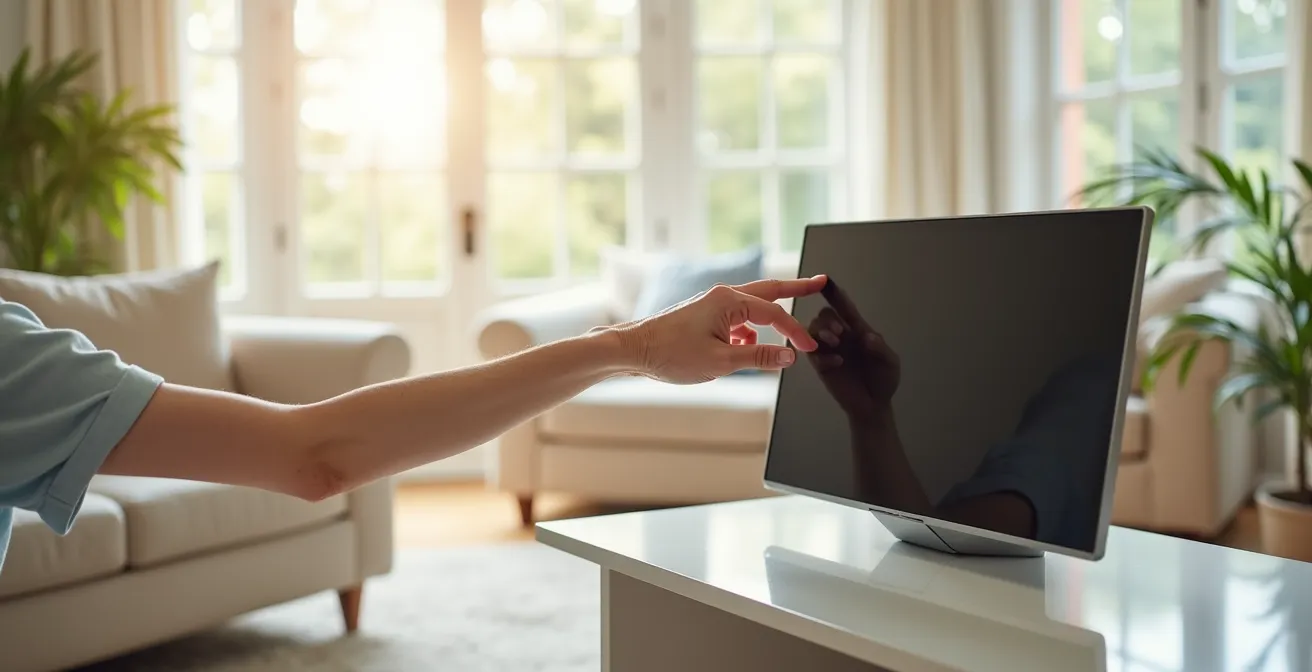
Beyond the physical controls, a deep dive into the device’s privacy dashboard is non-negotiable. You are setting the baseline for what the device records, how long it keeps data, and what it shares. Disabling or limiting data collection from the outset is far easier than trying to claw it back later. This setup process is a one-time investment that pays lasting dividends in security and peace of mind.
Your Essential Pre-Gifting Privacy Checklist
- Disable Voice Recording History: In the Alexa app, navigate to Settings > Alexa Privacy > Manage Your Alexa Data. Select the option for “Don’t save recordings” to prevent audio from being stored.
- Turn Off Amazon Sidewalk: This feature shares a small portion of your internet bandwidth with neighbors. Disable it by going to Settings > Account Settings > Amazon Sidewalk and toggling it off.
- Review and Limit Third-Party Skills: Just like smartphone apps, Alexa “skills” have permissions. Regularly review which skills have access to personal information and remove any that are unnecessary.
- Set Up Auto-Deletion: If you choose to save recordings, configure them to be automatically deleted after a set period (e.g., 3 months) rather than being stored indefinitely.
- Teach Physical Controls: Demonstrate the use of the physical camera shutter and microphone mute button, explaining that these are the ultimate “off” switches for complete privacy.
When to Schedule Video Calls to Avoid Disrupting Routine?
Successfully integrating a smart display into a senior’s life is about more than just technology; it’s about respecting their established rhythm and routine. A call at the wrong time—during a meal, a favorite TV show, or a nap—can feel disruptive and intrusive rather than welcome. The goal is to make video calls a seamless and anticipated part of the day. This requires a bit of detective work and collaborative planning to identify the “golden hours” for communication.
Before implementing a call schedule, take a week to passively observe or gently inquire about the senior’s daily routine. Note the times they wake up, eat meals, rest, and engage in activities. This map will reveal natural lulls in their day that are perfect for a chat. Generally, the best times are mid-morning (e.g., 10-11 AM) after breakfast and morning routines are complete, or mid-afternoon (e.g., 3-4 PM) after a potential nap. During these periods, alertness levels are typically higher, leading to more engaged and less fatiguing conversations. This is particularly important when considering that age-related health issues can impact energy; for instance, because two-thirds of older adults have age-related hearing loss, the effort of listening can be tiring, making timing even more critical.
Once you’ve identified potential windows, create a structured yet flexible schedule. Consistency is key. A recurring 10-minute call at 10:30 AM every day becomes a comforting ritual, something to look forward to. For more spontaneous family members, a shared digital calendar (like Google Calendar) can be used to mark approved call windows, preventing interruptions during off-limits times like meals or doctor’s appointments. It’s also wise to mix synchronous calls with asynchronous communication. Encourage family to send video messages or share photos to the device’s home screen throughout the day. This provides a sense of constant, passive connection without demanding immediate attention.
- Identify Natural Breaks: Find the quiet moments in the senior’s day, typically between meals and appointments.
- Block Out No-Call Zones: Designate meal times and nap times as sacred, interruption-free periods.
- Establish a Core Schedule: Set up a few recurring weekly calls at the same time to create a predictable routine.
- Use a Shared Calendar: For the wider family, share a calendar showing “green” windows when it’s okay to call spontaneously.
- Embrace Asynchronous Tools: Use video messages and photo sharing for low-pressure, “thinking of you” moments.
Wi-Fi vs. Cellular Telecare: Which Is Safer for Isolated Homes?
A smart display is only as reliable as its internet connection. For most users, connecting to an existing home Wi-Fi network is the simplest and most cost-effective solution. However, this introduces a critical point of failure, especially for seniors living in isolated or rural areas. A power outage or an issue with the internet service provider (ISP) can instantly sever the communication link, leaving the senior completely cut off. This is a significant safety concern, particularly if the device is also being relied upon for emergency contact.
This is why cellular connectivity is an essential consideration for telecare. A smart display with a built-in 4G or 5G cellular modem operates independently of home internet. It functions much like a mobile phone, maintaining its connection as long as it has power and is within range of a cell tower. This provides a crucial layer of redundancy. The importance of this backup is underscored by data showing significant gaps in internet adoption among seniors. For example, 42% of seniors lacked internet access as recently as 2019, according to NIH data, highlighting that relying solely on home Wi-Fi is not always a viable strategy.
The safest and most reliable solution is a hybrid model that uses Wi-Fi as its primary connection but automatically fails over to a cellular backup if the Wi-Fi goes down. Many modern telecare systems and some smart displays offer this capability. While this option typically involves a monthly subscription fee for the cellular service, the cost is a small price to pay for the assurance of an uninterrupted connection in an emergency. For a senior living alone, this reliability is not a luxury—it is the core of the safety net.
The following table breaks down the trade-offs between these connectivity options:
| Factor | Wi-Fi Only | Cellular (4G/5G) | Hybrid (Wi-Fi + Cellular) |
|---|---|---|---|
| Reliability During Outages | No connection | Maintains connection | Automatic failover |
| Monthly Cost | $0 (uses existing) | $45-65/month | $45-65/month |
| Setup Complexity | Simple | No home internet needed | Most complex |
| Coverage in Rural Areas | Depends on ISP | Variable by carrier | Best coverage |
| Emergency Communication | Fails without power | Battery backup capable | Most reliable |
For an elderly person in an isolated home, a device with cellular backup is unequivocally the safer choice. It mitigates the risk of a single point of failure (home Wi-Fi/power) and ensures that the lifeline to family and emergency services remains open when it’s needed most.
How to Structure a Daily Check-In Routine for Remote Caregivers?
A smart display can be a powerful tool for remote caregivers, but its effectiveness depends on creating a structured, multi-layered communication routine. Random, infrequent calls can feel more like an obligation than a genuine connection. A well-designed daily check-in routine, however, can provide consistent reassurance and foster a sense of presence without being overwhelming. The key is to blend different types of communication—passive, asynchronous, and synchronous—to create a rich and varied tapestry of connection.
A successful framework can be thought of in three layers. The first is passive monitoring. This isn’t about surveillance, but about creating a shared digital space. A smart display’s home screen can be turned into a dynamic digital photo frame. Family members can remotely upload new photos daily, creating a constantly refreshing window into their lives. Seeing a new picture of a grandchild’s soccer game provides a silent, low-pressure “hello” that reinforces connection throughout the day.
The second layer is asynchronous messaging. Not every interaction needs to be a live call. Encourage family members to record and send short “good morning” or “good night” video messages. The senior can watch these at their convenience, without the pressure of responding immediately. This respects their routine while still delivering a personal, face-to-face message. The third and final layer is the scheduled synchronous call. This is the daily 10-minute video chat at a consistent time. To keep these calls from becoming repetitive, use simple daily themes like “Music Monday” (talk about a favorite old song) or “Memory Tuesday” (share a story from the past). This structure provides a starting point for conversation and makes the interaction more engaging. As noted by A Place for Mom, modern systems can help manage this:
Activity feed collects all of the Alexa Together features into the Alexa app, where caregivers can manage their alerts or access features like Drop In and Remote Assist.
– A Place for Mom, Alexa for Seniors: Benefits, Devices and Set-up
This three-layered approach ensures that connection is a constant, gentle presence rather than a series of demanding events. It provides peace of mind for the caregiver while respecting the senior’s autonomy and routine, transforming the smart display from a simple calling device into a true hub for family life.
Key Takeaways
- Frictionless is better: The best device removes barriers, reducing the ‘cognitive load’ and ‘decision points’ required to make a call.
- Privacy is paramount: Always configure privacy settings and teach the use of physical camera shutters before gifting a device.
- Routine is respect: Integrate calls into the senior’s existing daily schedule rather than disrupting it.
Telecare Systems for Dementia: Which Features Respect Privacy While Ensuring Safety?
When caring for a person with dementia, the role of a smart display shifts from a simple communication tool to a vital telecare system. The challenge intensifies: how do you leverage technology to ensure safety without stripping the individual of their dignity and privacy? The fear of a loved one wandering or having an accident is immense, yet the thought of constant surveillance is deeply uncomfortable. This delicate balance is at the heart of effective dementia care technology.
A real-world story often illustrates this tension best. Consider a scenario where a wife is the primary caregiver for her husband with vascular dementia. As one family member described, “she worries when he’s by himself, and my dad gets anxious because he sometimes forgets where she is… [She] would like to be able to get away occasionally, for her sake, and provide my father with a sense of independence, for his sake, while giving them both peace of mind.” This captures the dual need perfectly: safety for him, respite and peace of mind for her, and dignity for both.
The key is to select and configure features that provide the minimum necessary intrusion for the maximum safety benefit. For early-stage dementia, less invasive features are appropriate. For example, using voice-only Drop-In allows a caregiver to check in audibly without a visual component. Large, on-screen photo speed-dials for trusted contacts can simplify outgoing calls, reducing confusion. Automated medication reminders are another non-invasive but high-benefit feature. For mid- to late-stage dementia, more direct monitoring like auto-answer video calls might become necessary. Even here, it should be used judiciously and with transparency.
The goal is to create a supportive “digital memory box” rather than a surveillance state. Here’s how different features stack up in the balance between privacy and safety:
| Feature | Privacy Impact | Safety Benefit | Recommended For |
|---|---|---|---|
| Auto-answer video calls | Medium – visible monitoring | High – immediate visual check | Mid-stage dementia |
| Voice-only Drop-In | Low – audio only | Medium – verbal confirmation | Early-stage dementia |
| Photo speed-dials | None – user initiated | Medium – simplified calling | All stages |
| Medication reminders | None – automated | High – health maintenance | Early to mid-stage |
| Digital memory box | None – therapeutic tool | Medium – reduces anxiety | All stages |
Choosing the right features is a dynamic process that must be re-evaluated as the condition progresses. It requires open conversation (where possible) and a commitment to preserving autonomy and dignity at every stage. Technology should support independence, not replace it.
The choice between a tablet and a smart display is not a matter of technical specifications, but a question of human-centric design. For a family seeking to bridge the digital divide for a non-tech-savvy grandparent, the goal is to remove every possible point of friction between loneliness and connection. A tablet, with its apps, notifications, and multi-step processes, inadvertently erects barriers. A well-configured smart display, on the other hand, is designed to dismantle them. By embracing voice-first interaction, passive connection features, and a simplified interface, it becomes an ambient tool that fosters the spontaneous, anxiety-free communication that families crave. Assess your loved one’s specific needs, prioritize simplicity over versatility, and you will choose a tool that builds bridges, not walls.